
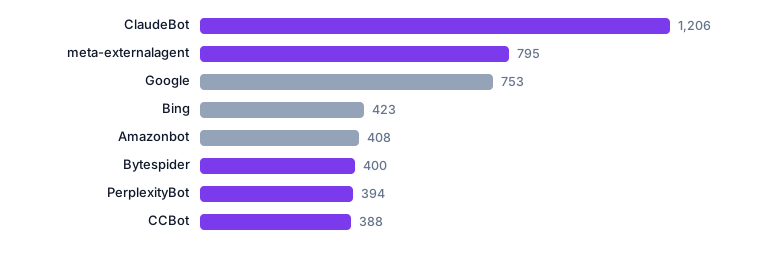
You want to know which crawlers visit your site, including AI crawlers like GPTBot and ClaudeBot. You can read server logs two ways: run raw command-line searches on the access log, or load the log into a log analyzer that parses and groups bot traffic. The raw approach gives you exact control and works on any server. The analyzer approach is faster once you have weeks of logs. Here is how to choose, what each method shows, and how to verify that a crawler is who it claims to be.
1. What server logs contain and where to find them
A server access log is a text file where the web server writes one line per request. Each line usually records the visitor's IP address, the date and time, the request method and path, the HTTP status code, the response size, the referrer, and the user-agent string. The user-agent string is the text a client sends to identify itself, such as Mozilla/5.0 (compatible; GPTBot/1.0; +https://openai.com/gptbot).
On Apache, the default log path is often /var/log/apache2/access.log or /var/log/httpd/access_log. On Nginx, look in /var/log/nginx/access.log. On shared hosting, the control panel usually has a "Raw Access Logs" or "Access Logs" section. The exact path depends on your host and server configuration, so check your hosting documentation first.
The format follows the Common Log Format or the Combined Log Format, which the Apache HTTP Server documentation describes in its "Log Files" guide. If your host uses a custom format, the field order may differ. Check the first few lines before you write any search command.
2. Two approaches side by side: raw commands vs log analyzer
Put simply, the raw approach means you search the log file yourself with tools like grep, awk, and sort. The analyzer approach means you upload or stream the log into a tool that parses each line and shows dashboards or filtered tables. Both read the same data. The difference is who does the parsing and how much history you can compare.
| Factor | Raw commands (grep/awk) | Log analyzer (software or hosted tool) |
|---|---|---|
| Setup time | Minutes if you have shell access | Minutes to hours, depending on install or upload |
| Cost | Free; built into most Linux servers | |
| Good for | One-off checks, exact pattern searches, small logs | Ongoing monitoring, trend charts, large logs |
| Skill needed | Basic command line | Web UI; less command line |
| AI crawler filtering | You write the pattern | May have preset bot lists; verify they are current |
| Verification of identity | Manual reverse DNS and IP check | Some tools show reverse DNS; check before trusting |
| History and trends | You keep old files and compare | Built-in if the tool stores history |
Neither method is better in every case. A site with 5,000 requests a day can answer most questions with a few grep commands. A site with millions of lines and a need to see weekly patterns will spend more time building scripts than opening an analyzer.
3. Three checks before you trust any crawler hit
A user-agent string is self-declared. Any client can send a string that says "GPTBot" without being GPTBot. So the first check is not the name; it is whether the claim holds up. Here are three checks, in order.
- Check the user-agent against the operator's published list. OpenAI publishes its crawler user-agents and IP ranges in its documentation. Anthropic publishes ClaudeBot details in its own docs. Google publishes its crawler list and verification method in Google Search Central. If the string does not match the published format, treat it as unverified.
- Run a reverse DNS lookup on the IP. For Googlebot, Google documents that a genuine request comes from an IP whose reverse DNS resolves to
googlebot.comorgoogle.com, and that a forward lookup of that hostname returns the same IP. The same pattern applies to other operators that publish verification steps. - Compare against the operator's published IP ranges. OpenAI publishes a JSON file of its crawler IP ranges. Fetch it and check whether the IP in your log falls inside one of those ranges. If it does not, the user-agent is likely spoofed.
These checks take a few minutes per IP. Do them before you change robots.txt or firewall rules based on a log line.
4. Four commands that answer most crawler questions
These commands assume a Combined Log Format file at access.log. Adjust the path to your server. Run them from the directory that holds the log, or use the full path.
- Count hits by user-agent:
awk -F'"' '{print $6}' access.log | sort | uniq -c | sort -nr | head -20. This prints the top 20 user-agent strings by request count. It shows you which bots are most active. - Find AI crawler lines:
grep -iE 'GPTBot|ClaudeBot|PerplexityBot|Google-Extended' access.log. This filters lines that mention common AI crawler names. The names come from each operator's documentation; check that list for the current set. - See hits per day for one crawler:
grep -i 'GPTBot' access.log | awk '{print $4}' | cut -d: -f1 | sort | uniq -c. This groups GPTBot requests by date. Use it to see whether crawl activity is growing or flat. - List unique IPs for one crawler:
grep -i 'GPTBot' access.log | awk '{print $1}' | sort -u. Take these IPs to the next step: reverse DNS and range checks.
If your log is compressed, use zcat access.log.gz | before the command. If you have rotated logs, run the command across several files with zcat access.log.*.gz.
Here is a typical Combined Log Format line with a GPTBot hit. Fields are separated by spaces, and the user-agent is the last quoted section.
203.0.113.42 - - [12/Mar/2026:09:14:02 +0000] "GET /guides/server-logs HTTP/1.1" 200 18432 "-" "Mozilla/5.0 (compatible; GPTBot/1.0; +https://openai.com/gptbot)"The IP 203.0.113.42 is from a documentation range, so it is an example only. In a real log, you would see the crawler's actual IP. The status code 200 means the page was served. A 403 or 429 means your server or firewall blocked the request, which is worth knowing before you assume a crawler never came.
AI crawlers often appear in clusters. If GPTBot fetches 40 pages in two minutes, you will see 40 lines with the same IP or a small set of IPs. Grouping by user-agent and hour is the fastest way to see the pattern. A single hit is not a trend; a burst across several days is.
5. A five-step checklist to verify crawler identity
This checklist turns the three checks above into a repeatable process. Run it for any crawler you plan to allow or block.
- Extract the IP and user-agent. Use the commands in section 4 to get a list of unique IPs for the crawler name you care about.
- Run reverse DNS. On Linux or macOS,
dig -x 203.0.113.42orhost 203.0.113.42returns the hostname. Compare it to the operator's published domain. For Googlebot, the documented domains aregooglebot.comandgoogle.com. - Run forward DNS. Take the hostname from step 2 and resolve it with
dig hostname. The returned IP must match the original IP. Google documents this forward-confirmed reverse DNS check as its verification method. - Check the published IP range. For OpenAI, fetch the JSON file linked from its crawler documentation and test whether the IP falls inside a listed range. For other operators, check their docs for a range list or a verification endpoint.
- Record the result. Note the date, the IP, the user-agent, and whether it passed. If you later see the same IP fail, you have a baseline to compare.
If a request fails steps 2 to 4, treat it as unverified. It may be a spoofed bot, a proxy, or a misconfigured client. Do not block on a single failed check; look for a pattern across several days.
6. Five log analyzers and what each is good at
Analyzer choice depends on whether you want a hosted dashboard, a self-hosted tool, or a command-line summarizer. The table below compares common options. Feature sets change, so check the current documentation before you commit.
| Tool | Type | Good for | Bot filtering |
|---|---|---|---|
| GoAccess | Self-hosted, terminal or browser | Real-time summaries on your own server | User-agent filters; you define crawler patterns |
| AWStats | Self-hosted, Perl | Historical reports from static logs | Bot list configurable; check current list |
| Matomo (log import) | Self-hosted or cloud | Mixing log data with analytics | Bot exclusion settings |
| Cloudflare Logs / dashboard | Hosted, if you use Cloudflare | Filtering by verified bot status | Cloudflare documents verified bot handling in its docs |
| Screaming Frog Log File Analyser | Desktop | SEO-focused crawl comparison | Bot segmentation built in; verify version |
I would start with GoAccess if you have shell access and want a quick view, because it runs on the server and needs no upload. I would use a hosted dashboard if multiple people need to see the same charts. The tool matters less than the verification step: an analyzer that labels a hit "GPTBot" without checking the IP is repeating the user-agent claim, not confirming it.
7. What to do with the result: allow, block, or watch
Once you have verified a crawler, you have three choices. Allow it, block it, or keep watching. The choice depends on what the crawler does and what you want from it.
To allow, make sure your robots.txt does not disallow the path, and that your firewall or CDN does not block the operator's IP ranges. To block, add a Disallow rule for the specific user-agent in robots.txt, and if needed add a firewall rule for the verified IP range. Google documents robots.txt syntax in its Search Central documentation; OpenAI and Anthropic document which user-agents control their crawlers.
To watch, keep the log check running weekly and compare counts. If a verified AI crawler drops to zero after a change, check whether a firewall rule or a robots.txt edit caused it. Logs show the effect; the cause is usually one edit away.
At a Glance
- Two methods: raw commands for exact control, analyzers for ongoing views.
- User-agent is a claim, not proof. Verify with reverse DNS and published IP ranges.
- Googlebot verification: reverse DNS to
googlebot.comorgoogle.com, then forward lookup matching the IP, per Google Search Central. - OpenAI crawler ranges: published as a JSON file linked from OpenAI's crawler documentation.
- Status codes matter: a 403 or 429 on a crawler line means a block, not an absence.
- Check before you block: a failed verification can be a proxy or a misconfigured client, not always a spoof.
FAQ
How do I identify crawlers in my server logs?
Search the user-agent field for known crawler names such as GPTBot, ClaudeBot, Googlebot, or Bingbot. Then group by IP and date to see whether the pattern looks like a crawler (many requests, short window) or a person (few requests, varied paths).
How can I verify a crawler's identity is genuine?
Run a reverse DNS lookup on the IP, then a forward lookup on the resulting hostname. The forward lookup must return the same IP. Also check the IP against the operator's published range list, such as OpenAI's JSON file or Google's documented verification method.
What do AI crawler hits look like in access logs?
They look like normal requests with a user-agent string that names the crawler, for example Mozilla/5.0 (compatible; GPTBot/1.0; +https://openai.com/gptbot). They often appear in bursts across many pages in a short time.
Which log analyzer tools detect bot traffic?
GoAccess, AWStats, Matomo log import, Cloudflare Logs, and Screaming Frog Log File Analyser can all filter or segment bot traffic. Check each tool's current docs for how it handles verified bots versus user-agent claims.
How do I block unwanted crawlers from my server?
Add a Disallow rule for that user-agent in robots.txt, and if needed add a firewall rule for the verified IP range. Test after the change by checking the log for 403 or 429 responses on that crawler's lines.
Data sources: the standards and technical parameters referenced in this article are based on the corresponding national/industry standards and the manufacturer's factory QC records; the current in-force version prevails.
Sources (checked 2026-10-27): RFC 9110: HTTP Semantics (IETF) · Google Search Central: Meta tags and attributes Google supports.